
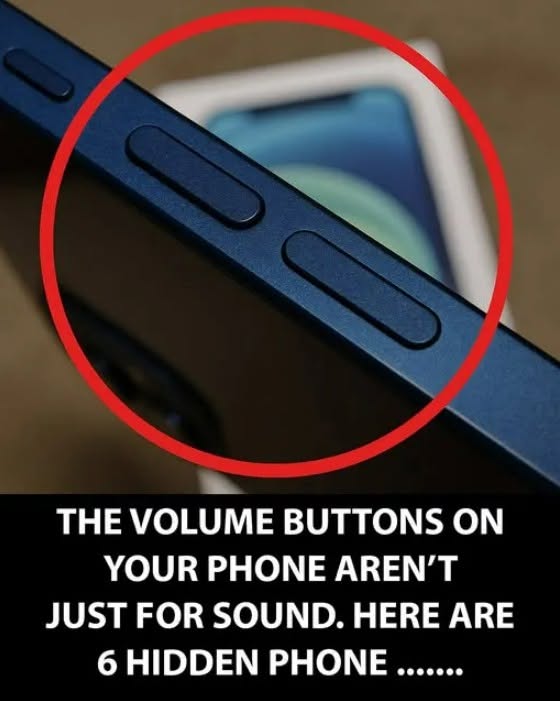
Most smartphone users press their physical volume buttons dozens of times a day for one simple reason: turning music up or silencing incoming calls. However, both iOS and Android operating systems pack powerful, lesser-known features directly into these side keys.
Beyond simple audio adjustment, physical volume buttons function as versatile hardware triggers. From taking instant photos to triggering emergency SOS alerts, mastering these hardware shortcuts can dramatically streamline your daily phone experience and even keep you safe during critical situations.
This comprehensive guide reveals 6 hidden smartphone volume button features, explains how they work across major operating systems, and offers practical tips for customization.
The Hidden Versatility of Hardware Buttons
Modern smartphones feature sleek, buttonless touchscreens, making physical buttons increasingly valuable for quick, tactile actions you can perform without even looking at your screen.
                    VOLUME BUTTON SHORTCUT CAPABILITIES
                                     │
      ┌──────────────────────────────┼──────────────────────────────┐
      ▼                              ▼                              ▼
CAMERA & MEDIA CONTROL         ACCESSIBILITY & UTILITY         SAFETY & SECURITY
• Shutter button & burst       • Text-to-speech toggles        • Emergency SOS trigger
• Document scanning            • Quick flashlight activation   • Force restart shortcut
6 Hidden Smartphone Volume Button Features
Here are 6 practical ways to turn your volume keys into multi-functional productivity and safety shortcuts.
1. Camera Shutter & Burst Mode Button
Opening the camera app and trying to tap the on-screen shutter button with one hand often leads to shaky photos or dropped phones.
-
How It Works: In almost all default camera apps (iPhone and Android), pressing either Volume Up or Volume Down acts as a physical shutter button to take a photo instantly.
-
Burst Mode & Video: Holding down the Volume Up button on an iPhone captures a rapid sequence of burst shots, while holding Volume Down immediately begins recording a QuickTake video.
2. Fast Document Scanning
When scanning documents, receipts, or notes in apps like Apple Notes, Google Drive, or Adobe Scan, aligning your hand to tap the screen can create shadows or blurry text. Pressing a volume button acts as the capture trigger, letting you hold your device steady with both hands.
3. Quick Emergency SOS & Medical ID
In dangerous or urgent situations, unlocking your phone and searching for the dialer takes too much time.
-
iPhone (iOS): Pressing and holding the Side Button + Either Volume Button simultaneously brings up the Emergency SOS slider, Medical ID, and power-off screen. Holding them longer automatically dials emergency services.
-
Android: On many Android devices, pressing a volume key alongside the power button triggers emergency location sharing and alerts pre-selected emergency contacts.
4. Hard Reset and Recovery Mode
When a phone freezes, becomes completely unresponsive, or gets stuck in a software loop, touchscreen controls stop working. Hardware volume buttons are essential for executing a hardware force restart:
-
iPhone Force Restart: Press and quickly release Volume Up, press and quickly release Volume Down, then press and hold the Side Power Button until the Apple logo appears.
-
Android Safe Mode: Holding Volume Down during startup boots many Android devices into Safe Mode for troubleshooting corrupt apps.
5. Media Control & Alarm Snoozing
Physical keys give you tactile control over your device without requiring you to wake up the screen:
-
Snooze Alarms: When your morning alarm sounds, pressing any volume key automatically snoozes or dismisses the alarm, allowing you to react without opening your eyes.
-
Track Skipping: Many third-party media players and accessibility settings allow you to long-press Volume Up or Volume Down to skip tracks or rewind audiobooks.
6. Custom Accessibility & Flashlight Toggles
Both Apple and Google build extensive accessibility shortcuts into hardware keys:
-
Accessibility Triggers: On iOS, triple-clicking the side button (often combined with volume controls) can instantly activate Screen Zoom, VoiceOver, or Color Filters.
-
Android Button Remapping: Third-party apps on Android (like Button Mapper) allow you to turn volume buttons into dedicated physical triggers for your flashlight, voice recorder, or favorite application.
Comparing iOS vs. Android Volume Button Features
Review the quick-reference table below to see how key shortcuts function across mobile operating systems.
| Shortcut Function | iPhone (iOS) Action | Android Action |
| Take a Photo | Press Volume Up or Down | Press Volume Up or Down |
| Burst Mode Photo | Press & Hold Volume Up | Press & Hold Shutter / Configurable |
| Snooze Alarm | Press Either Volume Button | Press Either Volume Button |
| Emergency SOS | Hold Power + Any Volume | Press Power 5 times / Power + Vol Down |
| Silence Incoming Call | Press Either Volume Button | Press Either Volume Button |
| Custom Button Remapping | Limited (Shortcut App Integration) | Extensive (Third-Party Remappers) |
How to Customize Volume Button Settings
Customizing iPhone Camera Volume Controls:
-
Open Settings.
-
Tap Camera.
-
Toggle on Use Volume Up for Burst to capture rapid action shots with the Volume Up key.
Silencing Ringers via Volume Keys (iOS):
If you want volume buttons to adjust media volume only (and prevent accidental ringer changes):
-
Open Settings > Sounds & Haptics.
-
Toggle off Change with Buttons.
Conclusion: Unlock the Full Potential of Your Phone’s Hardware
Your smartphone’s physical buttons are far more than basic volume sliders. From camera shutter triggers to lifesaving emergency features, learning these built-in shortcuts saves time, improves photo stability, and ensures you’re prepared in an emergency.
Try these simple shortcuts today and take total control of your device’s hardware!
Frequently Asked Questions (FAQ)
1. Can volume buttons break from frequent use?
Modern smartphone volume buttons are rated for hundreds of thousands of presses and are built to be extremely durable. However, if a button becomes sticky or non-responsive, software features like iOS AssistiveTouch or Android Accessibility Menus offer virtual on-screen volume controls.
2. Can I use volume buttons as a camera shutter in third-party apps?
Yes! Popular apps like Instagram, Snapchat, and WhatsApp automatically support using hardware volume buttons as a camera shutter and video recording trigger.
3. How do I turn off the Emergency SOS shortcut if I trigger it accidentally?
On iOS, go to Settings > Emergency SOS and toggle off Call with Hold and Release or Call with 5 Button Presses to prevent unintended emergency calls.
4. Can I set my phone’s flashlight to turn on with a volume button?
On standard iPhones, this requires setting up an Action Button (on supported models) or a Back Tap gesture. On Android, you can use customizable apps like Button Mapper to assign the flashlight to a double-press of the volume down button.
