
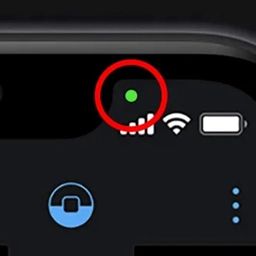
Smartphone privacy and data security are top priorities for mobile device users. When updating iOS operating systems, many iPhone users notice small colored indicator dots—specifically a distinct green dot or orange dot—appearing periodically in the top right corner of the status bar or Dynamic Island.
While seeing an unexpected status light can occasionally raise concerns about unauthorized tracking or spyware, this green dot is actually a core privacy feature introduced by Apple. Designed as an instant visual safety indicator, the green dot alerts users whenever an application is actively accessing the device’s camera or microphone. Understanding mobile privacy indicators, checking app permissions, and managing security settings keeps personal data protected. In this comprehensive mobile security, digital privacy, and consumer protection guide, we will analyze what the green dot means, explore privacy management tools, review mobile insurance coverage, and discuss consumer advocacy rights.
What Does the Green Dot Mean on iOS?
The status bar indicators on modern iPhones provide transparent hardware usage alerts:
1. Active Camera Access (Green Dot)
A green dot appearing at the top of your screen indicates that an application currently open on your phone (or running in the background) is actively accessing your iPhone’s camera—or both your camera and microphone simultaneously.
-
Common Examples: Opening the native Camera app, launching a FaceTime video call, recording a video on Instagram or TikTok, or using a mobile banking app to scan a check will immediately illuminate the green indicator dot.
2. Active Microphone Access (Orange Dot)
Similarly, an orange dot in the status bar indicates that an application is actively using your iPhone’s microphone to record audio:
-
Common Examples: Recording a Voice Memo, sending a voice message on WhatsApp, or making a standard cellular phone call will display the orange microphone dot.
3. How to Identify Which App Is Using Your Camera
If you see a green dot appear unexpectedly when you aren’t using a camera app, swipe down from the top-right corner of your screen to open the Control Center. At the very top of the Control Center screen, iOS displays a prominent privacy banner naming the exact application currently (or recently) utilizing your camera or microphone.
Best Practices for Managing iPhone Privacy and App Permissions
Taking control of your smartphone privacy requires reviewing app access settings regularly:
-
Review Camera and Microphone Permissions: Open Settings > Privacy & Security > Camera (or Microphone) to see a comprehensive list of all installed apps granted hardware access. Toggle off permission for any app that does not require camera functionality to operate.
-
Enable Approximate Location Services: For apps that do not require exact GPS navigation (like weather or shopping apps), set location permissions to “Approximate” rather than “Precise” location.
-
Audit Background App Refresh: Prevent unauthorized background data access by navigating to Settings > General > Background App Refresh and disabling background refresh for non-essential applications.
Mobile Security, Electronics Insurance, and Consumer Rights
Maintaining smartphone privacy aligns with broader mobile security and consumer advocacy protection.
Cyber Security and Mobile Electronics Insurance
While software indicators protect against unwanted camera access, physical mobile insurance policies (such as AppleCare+, carrier protection plans, or third-party electronics coverage) protect your physical hardware investment against accidental drops, liquid damage, or theft. Utilizing built-in iOS security features alongside reliable hardware insurance ensures total mobile protection.
Consumer Privacy Regulations and Legal Rights
Under consumer privacy laws (such as the California Consumer Privacy Act, GDPR, and federal FTC privacy frameworks), software developers are legally obligated to provide transparent disclosures regarding data collection and hardware usage. If a mobile application accesses a smartphone camera or microphone without user consent or misuses personal data, consumer protection laws permit users to file formal regulatory complaints or seek legal recourse. Consulting legal services specializing in digital privacy or consumer advocacy helps enforce consumer data rights effectively.
Fascinating Smartphone Privacy Facts
-
Hardware vs. Software Indicators: Traditional laptop computers feature physical hardware LEDs wired directly to the camera circuit, whereas smartphones rely on secure, tamper-proof operating system software indicators.
-
iOS 14 Privacy Revolution: Apple introduced the orange and green privacy dots with the release of iOS 14 in September 2020, setting a new standard for mobile operating system transparency.
-
Microphone Disabling Security: Ultra-secure mobile environments occasionally use hardware-modified devices where internal microphones and camera ribbon cables are physically disconnected to prevent electronic eavesdropping entirely.
Conclusion
The green dot at the top of your iPhone screen is an essential privacy feature designed to alert you whenever an app accesses your camera or microphone. By simply opening the Control Center, you can immediately identify which application is using your camera and adjust your privacy permissions accordingly. Combining proactive privacy checks with strong device security and consumer protection awareness ensures your personal data remains completely safe.
Frequently Asked Questions (FAQ)
1. Does the green dot mean someone is spying on my phone?
Usually no. In almost every case, the green dot appears because an app you opened (like Instagram, Snapchat, or FaceTime) is using your camera. However, if the green dot appears when no camera apps are running, swipe down to open the Control Center to check which app triggered it and revoke its permissions if necessary.
2. Can you turn off the green or orange privacy dots on an iPhone?
No. The green and orange privacy indicators are hardcoded security features built into the iOS operating system and cannot be disabled in settings. This ensures developers cannot hide camera or microphone usage from users.
3. What is the difference between the green dot and the orange dot?
The green dot signifies that an app is actively accessing your iPhone’s camera (or both camera and microphone). The orange dot signifies that an app is actively accessing only your microphone to record audio.
